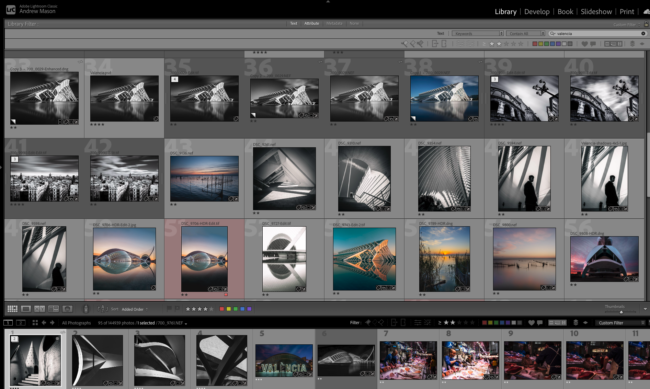
The Library module is where good workflows are built (or broken)
Most Lightroom problems don’t start in the Develop module.
They start much earlier – in the Library.
The Library module isn’t exciting, but it’s where speed, confidence, and sanity come from. Get this right and editing becomes easier. Get it wrong and Lightroom feels slow, furstrating and confusing.
This is how to actually work with it.
Think of Lightroom as a database, not a file structure
Lightroom doesn’t “contain” your photos.
It references them.
The catalog file (the `.lrcat`) is just a database that remembers:
- where the files live
- what you’ve done to them
- how you’ve described them
That’s why one rule matters more than all others:
Never move or delete photos outside Lightroom.
Do that, and Lightroom loses track of the file. That’s where missing files, warning icons, and broken exports begin.
Importing: decide once, then stop thinking about it
On import, Lightroom gives you three choices:
Copy – duplicates files to a new location
Move – relocates files and removes them from the source
Add – leaves files where they are and just points to them
For memory cards: **never use Add**.
Once the card is ejected, Lightroom has nothing to reference.
A solid default:
* Copy files from card
* Use a simple date-based folder structure
* Add **broad keywords** on import
* Apply a metadata preset with your copyright info
Perfection can come later. Consistency can’t.
Folders don’t help you find photos. Metadata does.
Folders answer one question: *where is the file stored?*
They don’t help you think.
Keywords, ratings, and collections answer better questions:
* What is this?
* Who is it for?
* Is it worth working on?
* Can I find it again in two years?
A messy folder structure with good metadata still works.
A perfect folder structure with no metadata doesn’t.
Culling: fast decisions beat careful ones
The first pass through images should be quick and slightly ruthless.
A simple system works:
* **Flags**: keep or reject
* **Stars**:
* 1–2 ⭐: reference only
* 3 ⭐: worth working on
* 4–5 ⭐: finished or portfolio-level
Stars aren’t praise.
They’re workflow markers.
Use Quick Develop for problem-solving, not polishing
In the Library module, Quick Develop exists for a reason.
It’s ideal for:
* fixing exposure issues
* normalising batches
* quick corrections before deeper work
If an image needs finesse, move to Develop.
If it just needs rescuing, stay in Library.
Collections are where Lightroom becomes powerful
Collections aren’t folders. They don’t move files.
They’re:
* virtual groupings
* saved searches
* working sets
Smart Collections are especially useful:
* “3-star images”
* “Client X + keyword ‘event’”
* “Unedited images from last month”
Once you trust Collections, you stop digging and start retrieving.
Searching beats browsing every time
Lightroom’s search can filter by:
* keywords
* ratings
* dates
* camera, lens, ISO, focal length
* aspect ratio and file type
But search only works if you’ve given Lightroom something to work with.
That’s why keywording – even loosely – matters.
Smart Previews: quiet, practical freedom
Smart Previews let you:
* edit without the original files attached
* work on laptops without hauling drives around
They take up space, but they buy flexibility.
For many photographers, that trade-off is worth it.
Exporting: the end of the Lightroom chain
Edits don’t exist outside Lightroom until you export.
A clean approach:
* Export JPEGs or TIFFs for delivery
* Store them **outside** the Lightroom catalog (Dropbox, client folders, etc.)
* Don’t re-import exported files
Your Lightroom catalog remains the home of the RAW and the work.
Delivery files live elsewhere.
The summary
The Library module isn’t glamorous – but it’s the difference between:
* feeling in control of your archive
* or constantly patching over confusion
If you trust Lightroom to manage your photos,
and you stay disciplined with keywords, ratings, and collections,
you spend less time organising — and more time actually working on images.

Andrew Mason is a professional photographer and the founder of the 36exp Photographers School plus the London Photo Show.
He shoots mainly commercial portraits for a living, and likes to shoot landscape, portrait and travel photography.
He is a master of lighting and portrait photography, plus leads photography trips with 36exp.